
Why does video keep breaking Webflow sites?
You spend weeks perfecting your Webflow build. Custom fonts, tight spacing, a color system that actually makes sense. Then you drop in a video and everything falls apart.
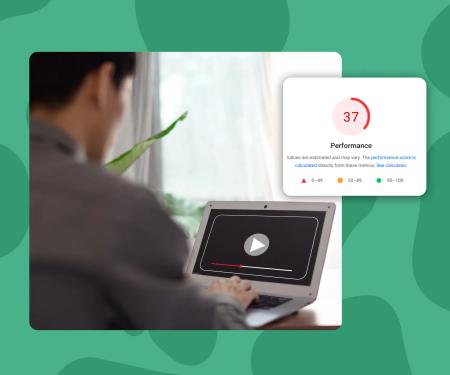
The layout shifts on mobile. The player looks nothing like your brand. And your PageSpeed score drops from 94 to 61 overnight.
This happens to almost every Webflow designer who reaches for the default embed options. The good news is it's a solved problem, and the fix is straightforward.
What actually goes wrong with Vimeo in Webflow?
Vimeo is the go-to for designers who want something cleaner than YouTube. And on desktop, it mostly works. The player is presentable. The video loads.
But on mobile, Vimeo takes a long time to load, often blocking your Largest Contentful Paint (LCP) and pushing your Core Web Vitals into the red. Google measures LCP on mobile by default when crawling your site.
There are a few specific failure points worth knowing.
The iframe scaling problem
When you paste a Vimeo embed code into a Webflow embed block, you get a fixed-dimension iframe. To make it responsive, you have to wrap it in a div with a padding-bottom hack (the classic 56.25% trick for 16:9 ratio).
If you forget that wrapper, or if a client later edits the page, the iframe reverts to a broken state. On mobile, this usually means the video either overflows the container or collapses to zero height.
The third-party script load
Vimeo loads several external scripts with every embed. These scripts fire even before the user presses play. On a mobile connection, that extra network overhead adds real seconds to your load time.
PageSpeed Insights will flag these as render-blocking resources. That flag directly lowers your Performance score.
The branding you didn't ask for
Even on paid Vimeo plans, you'll often see the Vimeo logo appear on pause or at the end of the video. Vimeo's styling can also be limited, so no matter what you do, the video player still looks a little 'Vimeo' esque. That's someone else's brand sitting inside your carefully designed Webflow site.
How to Add Video to Webflow Without Breaking Your Design or Your PageSpeed Score
A video player for Webflow is an embeddable media player that integrates with Webflow's Designer via an Embed element. The best options are responsive by default, match the site's visual design, and don't load render-blocking third-party scripts that hurt Core Web Vitals scores.
Step-by-step
- Step 1: Upload your video to SuperMoo Go to your SuperMoo dashboard and upload your video file. SuperMoo transcodes it automatically for web delivery. You don't need to manually create different quality versions.
- Step 2: Customize the player before you embed it This is the step most platforms skip. In SuperMoo, you can set the player color to match your brand, choose your play button style, set a custom thumbnail, and remove all SuperMoo branding from the player. None of that requires touching any code.
- Step 3: Copy your embed code Once you're happy with how the player looks, copy the embed snippet from the SuperMoo dashboard. It's a single iframe line, no extra wrapper scripts needed.
- Step 4: Add an Embed element in Webflow In Webflow's Designer, drag an Embed element into your section. Paste the SuperMoo embed code. That's the whole step. SuperMoo's embed is responsive by default. You don't need the padding-bottom hack. You don't need a custom wrapper div. The player scales correctly on every screen size.
- Step 5: Check your PageSpeed score Run your page through PageSpeed Insights before and after. SuperMoo embeds load 3x faster than YouTube, Vimeo, or Wistia. You'll see that difference clearly in your LCP timing.
Key concepts
- Largest Contentful Paint (LCP)
- LCP measures how long it takes for the largest visible element on a page to fully load. For pages with above-the-fold video, the player or thumbnail is often the LCP element. Google's threshold for a 'good' LCP score is under 2.5 seconds. A slow-loading video embed can push LCP past 4 seconds on mobile, directly harming your search ranking signals.
- Render-blocking resources
- Render-blocking resources are scripts or stylesheets that the browser must download and process before it can display the page to the user. Video embeds from platforms like Vimeo often inject render-blocking scripts automatically. PageSpeed Insights flags these resources and deducts points from your Performance score, even if the video itself isn't the first thing the user sees.
- Responsive iframe embed
- A responsive iframe scales proportionally to fit any screen width without overflowing its container or collapsing. Achieving this with a standard iframe requires a CSS wrapper with a calculated padding-bottom value (56.25% for 16:9 video). Some video hosts, including SuperMoo, output embeds that are responsive by default and don't require this manual workaround.
- Core Web Vitals
- Core Web Vitals are three page experience metrics that Google uses as ranking signals: Largest Contentful Paint (loading), Interaction to Next Paint (interactivity), and Cumulative Layout Shift (visual stability). Video embeds affect all three. A slow-loading player hurts LCP. A video that shifts the layout as it loads hurts CLS. Both reduce your search visibility.
SuperMoo insights
- We've audited dozens of Webflow sites built by agencies and freelancers. The single most common PageSpeed regression we see isn't large images or unused JavaScript — it's a Vimeo iframe sitting above the fold with no lazy loading and three external scripts firing on page load. Fixing just that one element moves LCP by an average of 1.2 to 2 seconds on mobile.
- When we built SuperMoo, we made the embed responsive by default specifically because we watched clients break the padding-bottom wrapper every time they edited a page in the Webflow Editor. Non-technical clients don't know what a 56.25% padding trick is, and they shouldn't have to. The embed just works at any container width, which means fewer support calls and fewer broken layouts after handoff.
What does SuperMoo do differently under the hood?
SuperMoo was built by a Webflow agency that kept running into this exact problem. The platform was designed specifically for sites where performance and visual control both matter.
The embed is lightweight. It doesn't load third-party tracking scripts on your visitors' browsers. That means you're GDPR-safe by default, no cookie consent banner required just for a video player.
The player also doesn't phone home to advertising networks or build behavioral profiles on your visitors. For client sites, especially in the EU, that matters.
How much does a clean video setup cost?
Wistia, the other premium option designers consider, starts at $19/month with very limited bandwidth. SuperMoo starts at EUR9/month.
For most Webflow freelancers and small agencies, that difference adds up across client projects.
What if you have multiple videos on one page?
Multiple Vimeo embeds on a single page multiply the performance problem. Each iframe loads its own set of scripts.
With SuperMoo, each embed is independent and lightweight. You can have 4 or 5 videos on a page without the compounding load penalty you'd get from stacking Vimeo iframes.
If you're building a portfolio page or a course-style layout in Webflow, this difference is significant.
Quick checklist before you publish any Webflow page with video
- Is the player branded to match your site (no third-party logos)?
- Does the video load without layout shift on mobile?
- Is your LCP under 2.5 seconds on a mobile connection?
- Are you loading any unnecessary tracking scripts from your video host?
- Does the thumbnail display correctly before the user presses play?
If you can answer yes to all five, your video setup is solid.